
Signing In to a Facebook Account: Three Delivery Formats, Three Routes
October 16, 2026
BuyFBAccounts Support· Customer support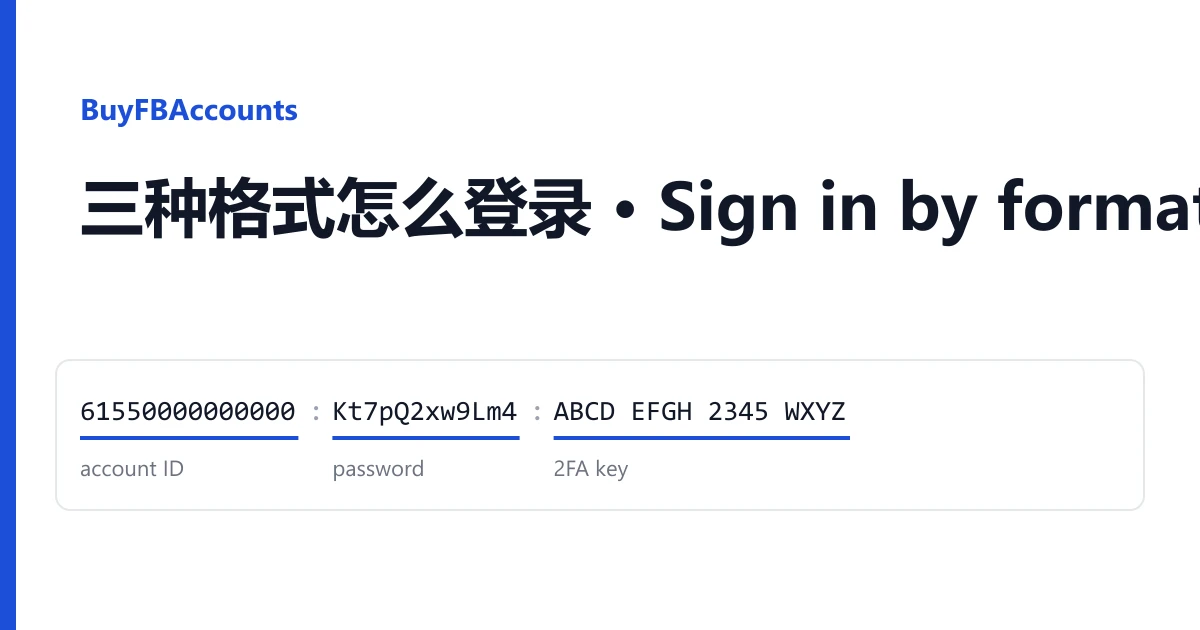
Every Facebook account you buy here arrives as one line of text on your order page. Lines are not all built the same way, and the way you sign in depends on what is in yours. Before anything else, work out which of three formats you have. It takes a few seconds and saves most of the trouble people run into.
Which format is your line?
Look at how the line starts and how it ends. Fields are usually separated by a vertical bar |, sometimes by a colon.
| Your line | Format | You sign in with |
|---|---|---|
| Starts with a long number, ends with an email address and its password | A: password and 2FA key | ID, password, a code made from the key |
| Starts like A, then goes on with a very long block of text | B: farmed, with a saved session | Same as A; the session fields are a backup |
Starts with a phone number such as +375..., ends with a cookie block | C: phone, password and cookies | Phone number and password, or the cookies |
The listing title tells you the same thing in words: "2FA" and "Email included" point to format A, "Token (EAAB)" or "Useragent + Cookies" to format B, and "Phone:Password:UserAgent|Cookie" to format C.
Format A: password and 2FA key
This is the format of the country listings (Marketplace, SMS and email verified). A line looks like this:
61550000000000|Kt7pQ2xw9Lm4|ABCD EFGH 2345 WXYZ|name1234@example.com|MailPass88
account ID | password | 2FA key | email | email password
Signing in
- On facebook.com, type the account ID in the "email or phone" box and the password below it.
- Facebook asks for a login code. Open https://checkkit.net/en/online-2fa-code-generator, paste the 2FA key (with or without the spaces) and copy the six digits it shows.
- Type the six digits into Facebook. A code is valid for about 30 seconds; if it is refused, make a fresh one.
Taking it over
Sign in to the mailbox with the email and email password first, so you can read anything Facebook sends there. Then, in Facebook's settings, change the password and add an email address you own. Keep the 2FA key: every new device asks for a code again, and the key is the only source of one until you switch two-factor to your own authenticator app.
If the listing title says the email is not included, your line stops after the 2FA key. That account works the same way, but Facebook's security emails go to a mailbox you cannot open, so add your own email early.
Format B: farmed account with a saved session
Farmed listings (registered, then used for a week or more before sale) add the session that was open when the account was packed:
61550000000000|Kt7pQ2xw9Lm4|ABCD EFGH 2345 WXYZ|name1234@example.com|MailPass88|EAAB...|Mozilla/5.0 (...)|[{"name":"c_user",...}]
account ID | password | 2FA key | email | email password | token | user agent | cookies
Which of the three session fields appear, and in what order, is stated in the listing. What they are for:
- Token (starts with
EAAB): an access key for software that talks to Facebook's API. You do not need it to sign in. - User agent (starts with
Mozilla/5.0): a description of the browser the session was saved in. It is information only; you do not type it anywhere. - Cookies (starts with
[{): the saved session itself. Imported into a browser, it opens the account without the password.
Signing in
Start the same way as format A: account ID, password, then the code from the 2FA key. If Facebook refuses the password or the code, fall back on the cookies:
- Install the Cookie-Editor extension in Chrome, Edge or Firefox.
- Open facebook.com, click the Cookie-Editor icon and choose Import.
- Paste the cookie block, from
[{to the final}], confirm, and reload the page.
The token, the user agent and the cookies all belong to the old session. Once you change the password, or Facebook ends that session, they stop working. That is expected: from then on you sign in with your new password and the 2FA key.
Format C: phone number, password and cookies
Some listings sign in by phone number and deliver the browser session next to it:
+375290000000:Passw0rd!:Mozilla/5.0 (...)|[{"name":"c_user",...}]
phone | password | user agent | cookies
There is no 2FA key and no mailbox in this format. Sign in with the phone number and password on facebook.com, or import the cookies with Cookie-Editor as described under format B. Because Facebook can only reach the original phone number, add an email address you own and switch on two-factor with your own authenticator app soon after your first sign-in; without them, a later security check has nowhere to send its code.
After the first sign-in, whatever the format
- Change the password and store it with the 2FA key in a password manager.
- Add your own email address, and remove the old one once yours is confirmed.
- Open the list of active sessions in the security settings and log out the ones you do not use.
- Keep the original line until the warranty window has passed. Support needs it to look up the account.
If the sign-in fails
Three causes explain most failed sign-ins. The wrong field was copied (the email password instead of the Facebook password, or the 2FA key typed in as if it were the code). The computer clock is off, so the six-digit code is out of step; set the clock to update automatically. Or the cookie block was cut short when it was copied, so it no longer ends in }].
If none of these is the problem, open a ticket from your order page within the warranty window shown on the listing. Name the line that failed and attach a screenshot of the message Facebook shows. The account is replaced from the same listing, or refunded if that listing is sold out. Signing in never voids the warranty; a ban caused by bulk or automated activity is not covered.
Facebook's own terms do not allow accounts to be bought or transferred, and Facebook can ask any account to verify itself. Use the accounts within its rules and the law. To pick another format, see the listings on our home page.